Adding Notes to Events

When we schedule an event (for multiple clients), how can we add a note for our employees? The event is at 12:30 pm.
Within this appointment, there are 3 clients with appointments at different times, but they must arrive at one location at a specific time. Our employee ALWAYS wants to know what time each appointment is at, and there is no place within the event to place that information. Can a message field (same as the canceled appointment field) be added?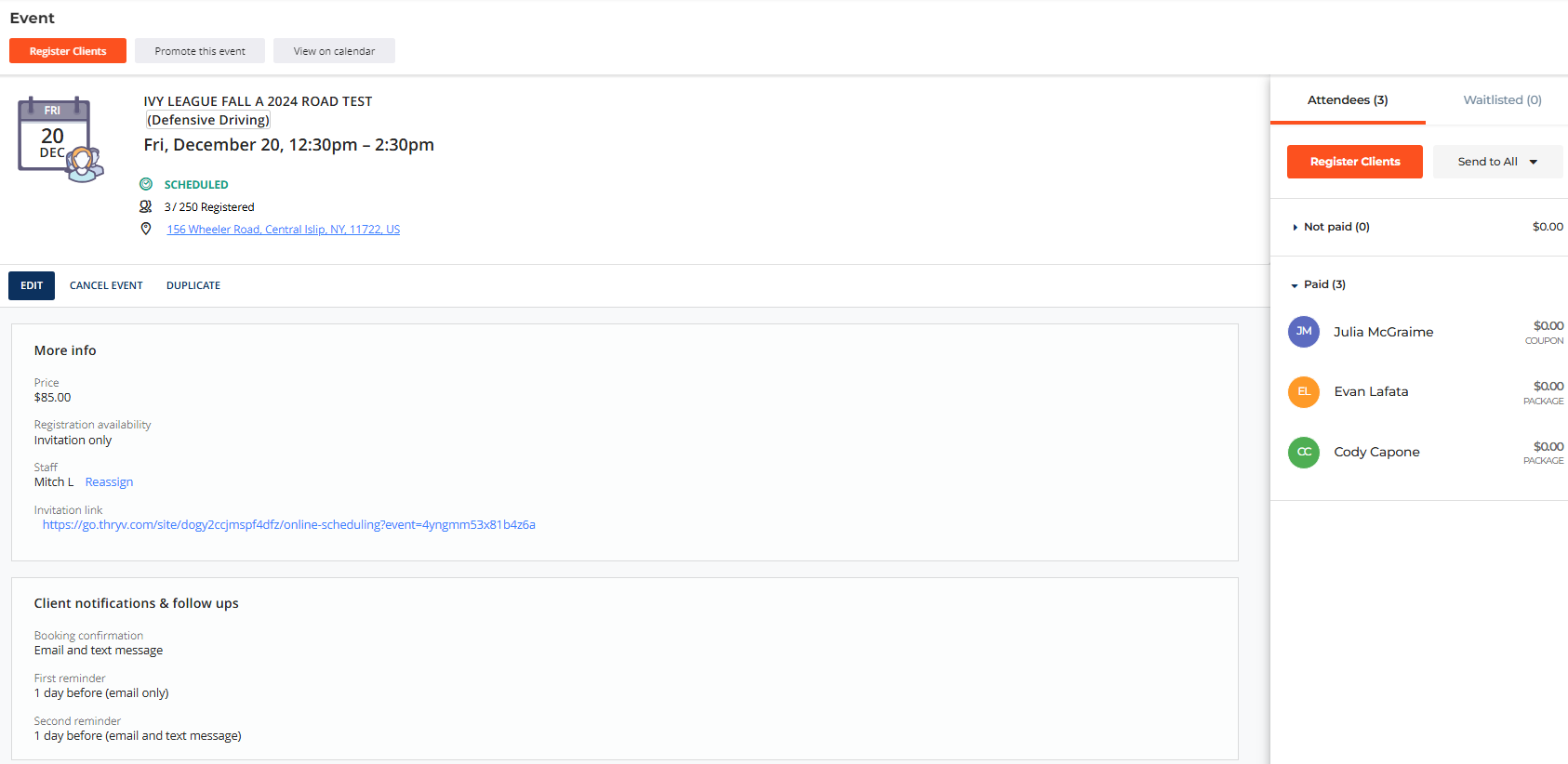
Thank you,
Lynn
-
After asking AI, this is what I received...
How can I add a note to an event for our employees?2 mins agoTo add a note to an event for your employees, follow these steps:
- Click on the event in your calendar.
- In the appointment details screen, find the Internal Note section. There is no Internal Note section.
- Click on Add Note.
- Type your note in the dialogue box and format it as needed.
- Click Save to add the note to the event.
This note will be visible internally to your staff.
0 -
Thank you for your post Lynn! Internal notes are only supported for 1:1 appointments, they are not available for group events. Thank you in addition for flagging the response from the AI, we have made appropriate updates to the wording in our support articles so this is clear for the AI to understand when generating responses.
We can create a feedback request to build this enhancement, which will be publicly available in our feedback center for other users to vote for. In the meantime, you would still need to communicate this extra information about the group event separately to your staff
Thank you, and if any other Thryv users have found a creative solution for this, let us know in a comment!0

Please sign in to leave a comment.
Comments
2 comments