My Thry is running incredibly slow

Are there updates or something that might fix this?
0
-
Hi there,
Most commonly, this is caused by caching in the browser that you use. We recommend clearing your cache/cookies to see if that helps resolve the issue. When doing this, we suggest following the steps below to ensure it is properly cleared:
Chrome
-
Select the tri-dot menu in the top right

-
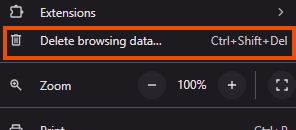
Navigate to Delete Browsing Data…
-
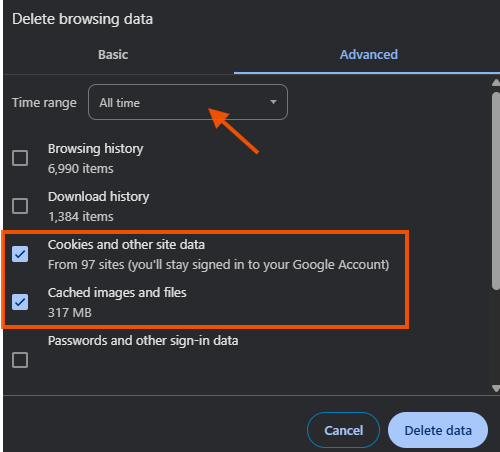
Ensure the Time range is set for All Time and that you have both check boxes for Cookies and other site data and Cached images and files selected. Then click Delete Data
- Depending on how much needs to be deleted, it can take several moments for this to complete. Once done, close out of Chrome completely. It is important that there are no Chrome windows open on your computer.
- Re-open Chrome and log in to your Thryv software normally.
If you use another browser for Thryv and need assistance, just let me know and I can provide specific instructions for the one you use!
Thank you!
0 -
Select the tri-dot menu in the top right

Please sign in to leave a comment.
Comments
1 comment