
Every client relationship moves through stages, from first conversation to closed deal to completed project. The pipeline in your CRM lets you track each opportunity as it progresses, so nothing slips through the cracks. You can create deals for new sales, ongoing projects, or any workflow that moves through stages. And because deals connect directly to the automation builder, moving a deal to a new stage can automatically trigger follow-up emails, tasks, or tags, keeping your team aligned without the manual work.
Add a Deal to a Pipeline
To add a new Deal from the Pipeline click My Day from the left hand navigation, then click on Pipelines.
Select your pipeline, then to create a deal click Add new
Click Select a contact, select an existing contact from the drop down list, or click +Add a new contact to create a new contact record
Tip: You can start typing the name of your desired contact into the Select a contact field to narrow the drop-down results
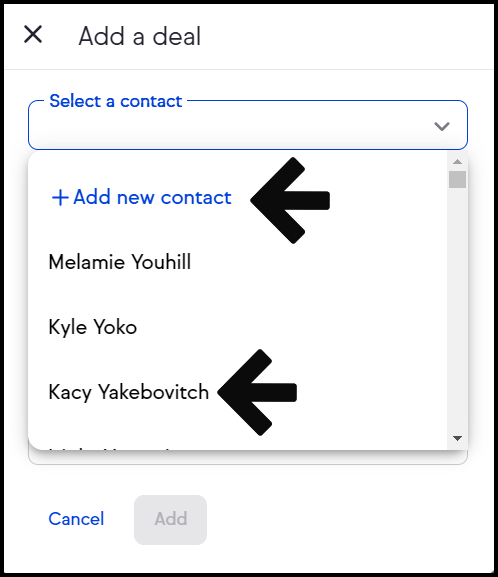
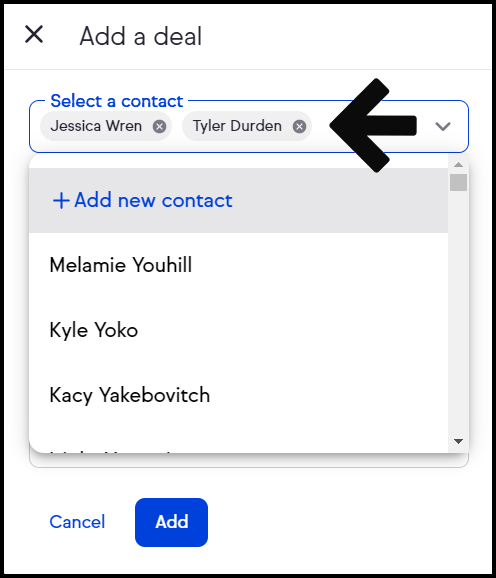
You can add multiple contacts to the new deal
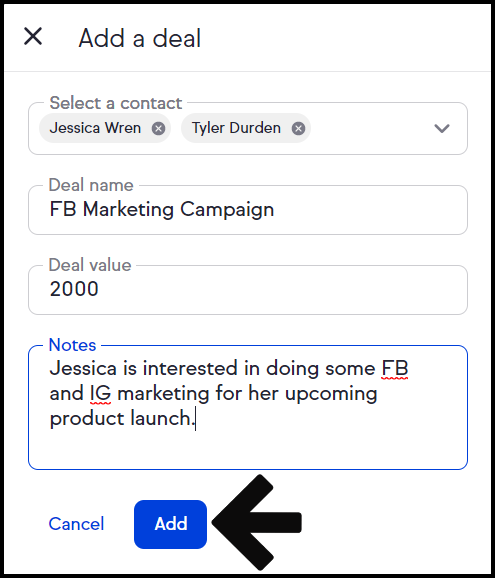
Add a Deal name, Deal Value, and Notes. Click Add to continue
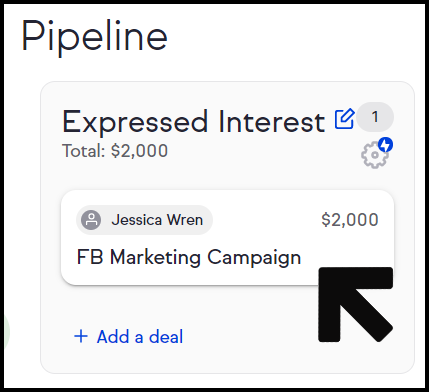
In the screenshot below is an example of what a deal in the pipeline looks like when partial or full information is added.
A. Deal card has only a contact added and no deal name
B. Deal card has only a deal name, no contact added
C. Deal card has both a contact added and a deal name
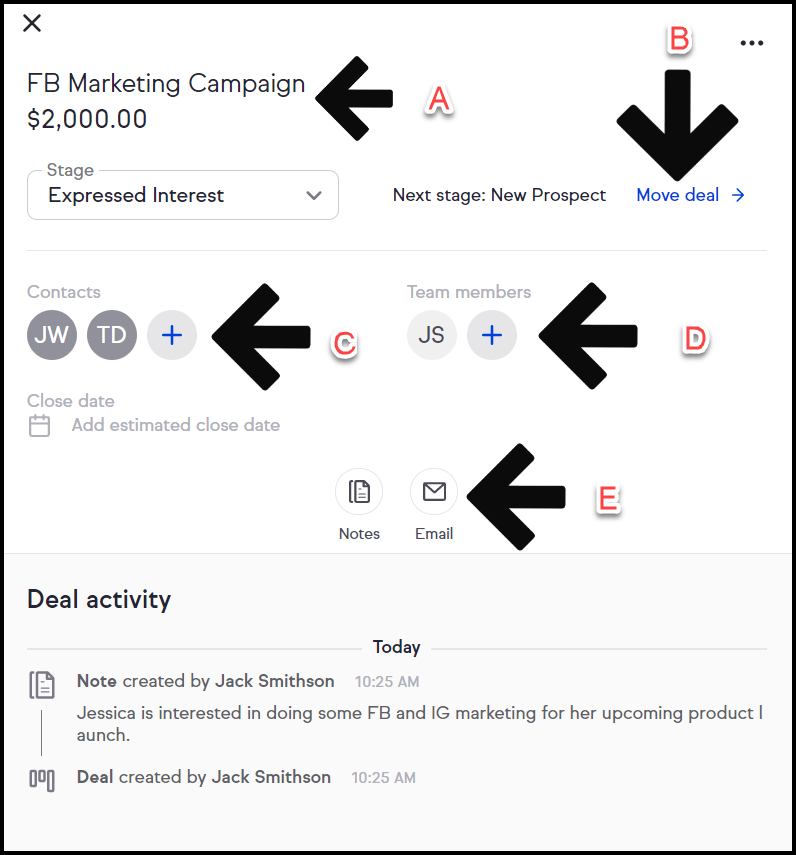
Click on the deal card to open the full view of the deal card or to add or edit details
- From the full view of the deal card you can:
A. Edit the deal name and deal value
B. Move the deal to the next stage
C. Add more contacts to the deal and an estimated close date
D. Add more Team members to the deal
E. Add notes or send an email to the primary contact for this deal
Comments
0 comments